

A [jpg to pdf converter](/tools/jpg-to-pdf) turns your photos into one PDF file you can send, print, or file away. ToolInPocket's version does the whole job inside your browser: your photos never leave your device, because the conversion runs on your own machine with the jsPDF engine, not on a server.
It costs nothing, needs no account, and finishes in seconds. You pick the photos, set the page size, and download one PDF.
Four steps, and the PDF is yours
To convert jpg to pdf, you need nothing but the photos and a browser. The steps below are the whole job — phone and computer alike — so read them once and use them everywhere.
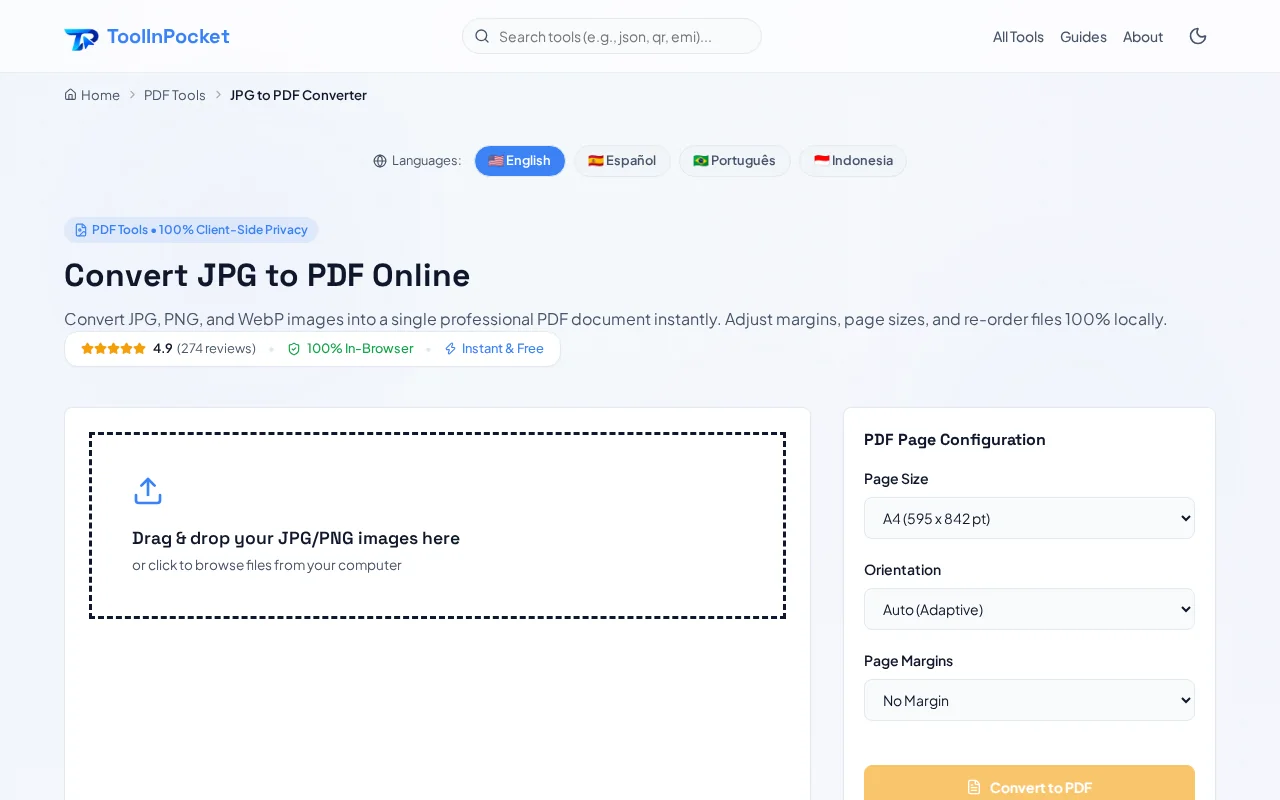
Step 1 — Add your photos
Open the converter and drop in your JPG files, or click to choose them from your device. You can add one photo or a whole folder's worth at once.
Step 2 — Put them in order
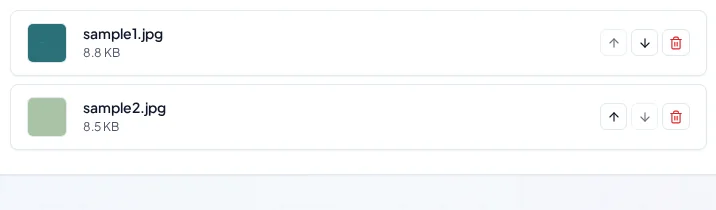
Drag the previews into the order you want the pages to appear, or use the up and down arrows on each image. The first photo becomes page one.
Step 3 — Pick a page size and margins
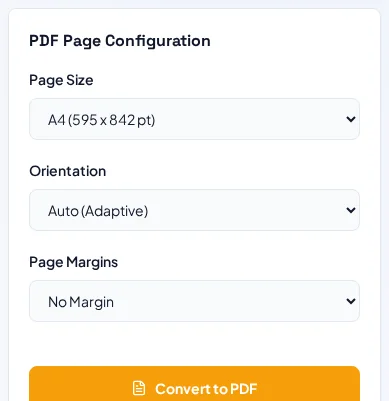
Choose A4, US Letter, or Auto-Fit, which sizes each page to the photo itself, then set the margins — none, narrow, or normal.
Step 4 — Convert and download
Press Convert to PDF and the file downloads straight to your device. Nothing was uploaded, so there is nothing to wait for on a server.
What you can put in: JPG, PNG, WebP — and JPEG too
Use it to convert images to PDF from PNG or WebP just as easily as from JPG, so a mixed set of screenshots and photos goes into one file without any prep work first.
JPEG is JPG by another name
If your file ends in .jpeg instead of .jpg, nothing changes — JPEG and JPG are the exact same format with two spellings, and the tool will convert jpeg to pdf exactly the way it handles a .jpg file.
One photo or a whole set
One photo makes a one-page PDF, which is all a single receipt or certificate usually needs. To merge jpg to pdf, add all the photos before you press Convert — each one becomes a page, in the order you set.
There is no set limit on how many images you can add; the only real limit is your device's memory, and the tool says so plainly on its own page. A ten-page set takes the same four steps as a single photo.
Page size, margins, and the order of the pages
The page size is the one choice that matters. A4 is the standard almost everywhere outside North America, US Letter is the standard inside it, and Auto-Fit skips the question entirely by sizing each page to the photo, so there are no white borders to trim later.
Margins work the same way:
- No margin: Gives a clean full-bleed page without border spacing.
- Narrow margin: Keeps a thin, clean frame around photographs.
- Normal margin: Leaves a comfortable border for printing or three-hole punching.
Set the order first and the layout second, because a tidy page order is what makes the finished PDF easy to read.
On a phone or a computer, the same four steps
- On an iPhone or an Android phone: Tap the upload box, pick your photos from your gallery, and follow the same four steps above — there is no app to install from the App Store or Google Play, and the PDF lands straight in your device's Files app or Downloads folder.
- On Windows or a Mac: Drag the whole folder of photos into the browser window and follow the same four steps. The browser does the work either way, so the steps do not change with the machine.
How the free converters compare
Most online JPG to PDF tools upload your file to a server first. That means your photos travel to someone else's computer, get converted there, and come back — and you have to trust that server with documents that might be an ID card, a driver's license, or a private bank statement. Adobe Acrobat, iLovePDF, and Smallpdf all work that way.
ToolInPocket's free JPG to PDF converter works the other way round: the file never leaves your device, so there is nothing to delete afterwards and no clock running on your photos. It costs nothing, adds no watermarks, and asks for no email address.
When a PDF is the wrong file
A PDF is for sending, printing, and filing. If you still plan to edit the photo — crop it, retouch it, or post it somewhere that asks for an image — keep the JPG and convert it only when the file is finished. A form that asks for a JPG will reject a PDF outright, so check what the other end wants before you convert.
Questions people ask
How to convert jpg to pdf on an iPhone?
Open the JPG to PDF Converter in Safari, tap the upload box, pick your photos from your photo library, and follow the four steps at the top of this guide. The PDF downloads straight to your Files app with no extra app required.
Is the converter really free?
Yes. There is no payment, no trial period, no daily limit, and no account required — the tool costs nothing to use.
Are my photos uploaded anywhere?
No. The conversion runs entirely in your local browser memory using client-side JavaScript. Your photos never leave your device.
Can I convert a PNG the same way?
Yes. PNG and WebP go through the exact same steps, and a mixed set of JPG, PNG, and WebP images becomes one unified PDF.
What if my photos are too big?
Large smartphone camera photos make large PDFs. If the file must stay small for an email attachment or portal, compress the images first with our Image Compressor, then convert — the converter itself preserves the exact resolution and detail of whatever you provide.